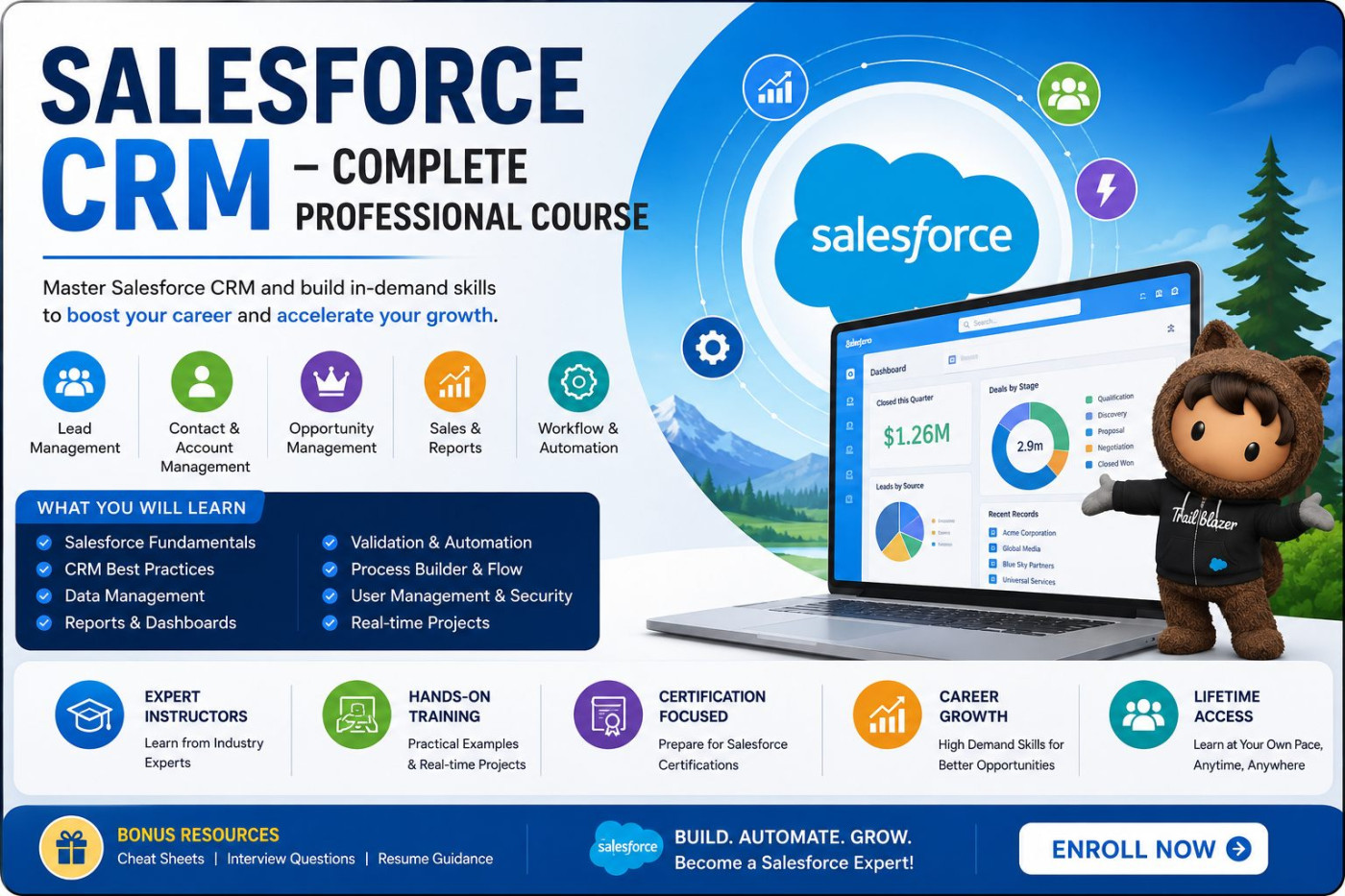
Salesforce is the world's leading Customer Relationship Management (CRM) platform used by businesses to manage customers, sales, marketing, and support processes. This course provides a step-by-step introduction to Salesforce, covering navigation, data management, security, reports, dashboards, workflow automation, and administration concepts. By the end of the course, learners will be able to confidently navigate Salesforce, manage data, create reports, automate business processes, and prepare for Salesforce Administrator roles.
Lesson 1: What is Salesforce?
Lesson 2: Cloud Computing Fundamentals
Lesson 3: CRM Concepts and Benefits
Lesson 4: Salesforce Ecosystem Overview
Lesson 5: Salesforce Editions and Licenses
Lesson 1: Company Settings
Lesson 2: User Management
Lesson 3: Custom Objects
Lesson 4: Custom Fields
Lesson 5: Page Layouts
Lesson 1: Introduction to AppExchange
Lesson 2: Installing Applications
Lesson 3: Integration Basics
Lesson 1: Salesforce Login and Setup
Lesson 2: Lightning Experience Overview
Lesson 3: App Launcher
Lesson 4: Tabs and Navigation
Lesson 5: Global Search
Lesson 6: User Settings and Personalization
Lesson 1: Introduction to Objects
Lesson 2: Accounts
Lesson 3: Contacts
Lesson 4: Leads
Lesson 5: Opportunities
Lesson 6: Cases
Lesson 7: Products and Price Books
Lesson 1: Data Import Wizard
Lesson 2: Data Loader
Lesson 3: Data Export
Lesson 4: Data Validation
Lesson 5: Duplicate Management
Lesson 6: Data Quality Best Practices
Lesson 1: Users and Profiles
Lesson 2: Roles and Role Hierarchy
Lesson 3: Permission Sets
Lesson 4: Organization-Wide Defaults
Lesson 5: Sharing Rules
Lesson 6: Field-Level Security
Lesson 1: Creating Reports
Lesson 2: Report Types
Lesson 3: Filters and Grouping
Lesson 4: Dashboard Components
Lesson 5: Dashboard Creation
Lesson 6: Dashboard Scheduling
Lesson 1: Workflow Rules
Lesson 2: Process Builder Overview
Lesson 3: Salesforce Flow Introduction
Lesson 4: Approval Processes
Lesson 5: Email Alerts
Lesson 6: Automation Best Practices
Need to post reviews.
Be the first to share your experience.





Try scrolling the rest of the page to see this option in action.


 Buy Now
